Like Mac OS X, Ubuntu includes by default a privilege escalation system that invokes sudo, which allows certain users (in the admin group) to operate as limited-privileged users for almost all tasks and to temporarily escalate (after a password authentication) to administrative privileges for specific tasks. For more details about sudo, check out the Ubuntu Wiki page on the subject.
Sometimes users want to modify system files and thus need “root” (or full administrative) privileges to make changes to those files. This tutorial will show you how to create an application launcher to “browse as root.”

Right-click on an empty spot on the panel and select Add to Panel

Select Custom Application Launcher and then click Add
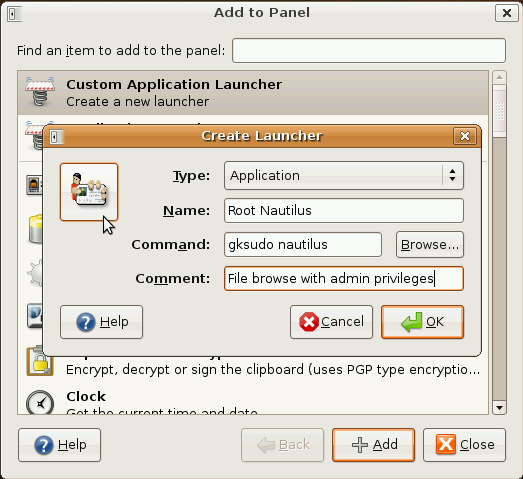
The type should be Application and the command should be
The rest of the fields and the icon can be whatever you want them to be.

When you’re done filling in the fields and (optionally) selecting an icon for the launcher, click OK
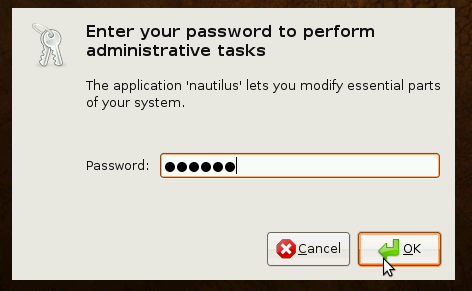
Now when you click the launcher icon, you’ll be prompted for a password…

and you can browse as root and make changes to system files, all within your otherwise-unprivileged user session.
A slightly more intuitive way of doing this is installing the “nautilus-gksu” package from Synaptic. When you next log in, if you right-click a file or a folder you will see the option to “Open as Administrator”.
For folders, this will prompt you for a password with gksudo, and then open a new instance of Nautilus as root, with your folder open. For files, it will prompt for password with gksudo and then run the appropriate program to handle the file; it will run the program as root, and open the file.
That i so cool. I have been trying forever to get rid of a folder inmy HOME directroy that was created by accident. Great little fix. I missed the old root terminal from 8.04 but this is better.
This *is* cool. Only after I installed ‘nautilus-gksu’, logged out & logged back in again, it works… without giving me a password challenge.
Just to be sure, I then opened a system file from the root-nautilus window with ‘gedit’, modified it, and tried to save it. It saved my changes — so I do get root privileges. I wonder if this is a 9.04 bug..??
You just authenticated yourself before launching synaptic. Sudo autentication is cached for a short while, so if you already gave your password in the last “n” minutes (I cant remember right exactly how many) you are not asked again
Alar, I think you’re correct… I’ve since installed it on other machines and after the (I believe) 5-minute interval, it does require me to re-authenticate.
I prefer
[ctrl]+[alt]+N
Thank you. I’ve needed this for a long time.
What *I* would like to see added to Ubuntu is a Linux version of the Windows Power Tools add-in that lets you pop-up on a folder in the file browser and pick “Command Prompt Here” — which, in Linux, would be something like “Open Terminal Here”…
Doing so would open a Terminal window and auto-execute the necessary ‘cd’ string to make your pwd become the folder you had right-clicked on. Very useful, especially if you’ve drilled down a ways in the file system to find something that you then want to do something with.
@Ted:
This is very easily achieved in thunar (Xfce file manager) using the custom actions. One of the reasons I prefer Xfce. The same can be done using nautilus scripts in Gnome – try googling for examples.
For Ted (and others): “Open Terminal Here”-functionality can be achieved in Ubuntu easily with ‘sudo apt-get install nautilus-open-terminal’
Thanks for this nifty idea! I was able to delete an unwanted file that I had accidentally created while learning how to work with files in Ubuntu 9.04.
@Bjorn: I just found your reply — thanks!! This works just the way I wanted it to.
Note to ‘others’: After installing it, you’ll need to log out and log back in for the right-click menu item to appear.
open the files in a another program…easy.
Just came across this and this is useful. You can add a path after gksudo nautilus in the command section.
“gksudo nautilus /home/username/”
Thanks, I had this in my last install but forgot to save it.
Great little tool!
Thanks for your help using ubuntu. You are really doing a great job for us..thanks.
nice one… thnks…:)