
the psycho cat on an HP Mini with Ubuntu
Just Beginning
Introduction
Read this first before you try Ubuntu*
Which Ubuntu to pick?
Getting Ubuntu
Making a bootable USB of Ubuntu
Ubuntu inside Windows
Dual-boot with Windows
Install Desktop CD Ubuntu
Modest Specs
Install Software
Security in Ubuntu
Where's the Terminal?
Password in Terminal
Next Steps
Install Proprietary Drivers
Mount Windows
Install Proprietary Plugins
Finding iTunes Alternatives
Use Wine
Beyond the Basics
Backing up Ubuntu
Upgrade Ubuntu*
Change boot menu
Playing Around
Unity to classic Gnome
Unity Gnome/KDE Plasma Comparison
Install KDE
Install XFCE
Pure Ubuntu
Pure Kubuntu
Pure Xubuntu
Pure Lubuntu
Troubleshooting
Can't sudo
Graphical sudo
Forgot password
* Off-site link
Cheap Plugs
If you've found these tutorials useful, please consider donating a small amount to one of my favorite non-profits/charities. Every little bit helps.
You may also want to consider donating directly to the Ubuntu project.
How to reset your password in Ubuntu

This work is licensed under a Creative Commons Attribution-ShareAlike 3.0 Unported License.
There are many reasons you might want to reset a password:
- Someone gave you a computer with Ubuntu installed on it but not the password for the user account.
- You just installed Ubuntu and forgot what password you selected during the installation process.
- You have too many passwords in your life and can't keep track of them all.
First, you have to reboot into recovery mode.
If you have a single-boot (Ubuntu is the only operating system on your computer), to get the boot menu to show, you have to hold down the Shift key during bootup.
If you have a dual-boot (Ubuntu is installed next to Windows, another Linux operating system, or Mac OS X; and you choose at boot time which operating system to boot into), the boot menu should appear without the need to hold down the Shift key.

From the boot menu, select recovery mode, which is usually the
second boot option.
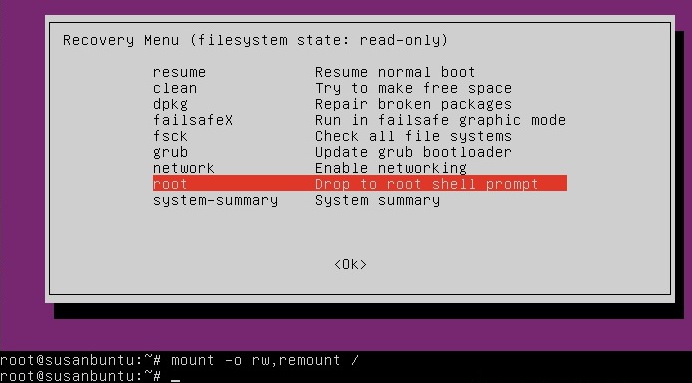
After you select recovery mode and wait for all the boot-up processes
to finish, you'll be presented with a few options. In this case, you
want the Drop to root shell prompt option so press the Down
arrow to get to that option, and then press Enter to select it.
The root account is the ultimate administrator and can do anything to the Ubuntu installation (including erase it), so please be careful with what commands you enter in the root terminal.
In recent versions of Ubuntu, the filesystem is mounted as read-only, so you need to enter the follow command to get it to remount as read-write, which will allow you to make changes:

If you have forgotten your
username as well, type
To reset the password, type
You'll then be prompted for a new password. When you type the password you will get no visual response acknowledging your typing. Your password is still being accepted. Just type the password and hit Enter when you're done. You'll be prompted to retype the password. Do so and hit Enter again.
Now the password should be reset. Type

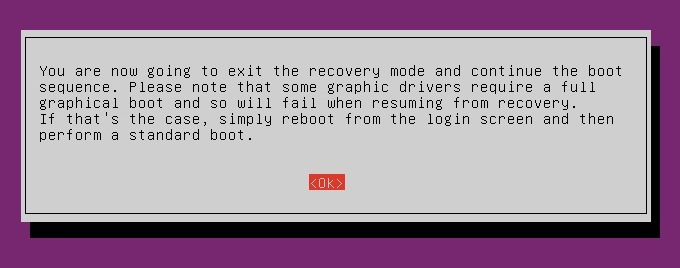
After you get back to the recovery menu, select resume normal
boot, and use Ubuntu as you normally would—only this
time, you actually know the password!
Note:
Some people get freaked out about having recovery mode logging you in
as root. For more information, read Recovery mode makes me root user. Isn't
that a security risk?
Last updated 04/29/12 11:34
If you have suggestions or corrections for these tutorials, please post in this Ubuntu Forums thread or leave a comment on my blog.
I will not give help to people posting in the above places. If you require technical support, start a support thread on the Ubuntu Forums. That is the appropriate place to ask for help.